
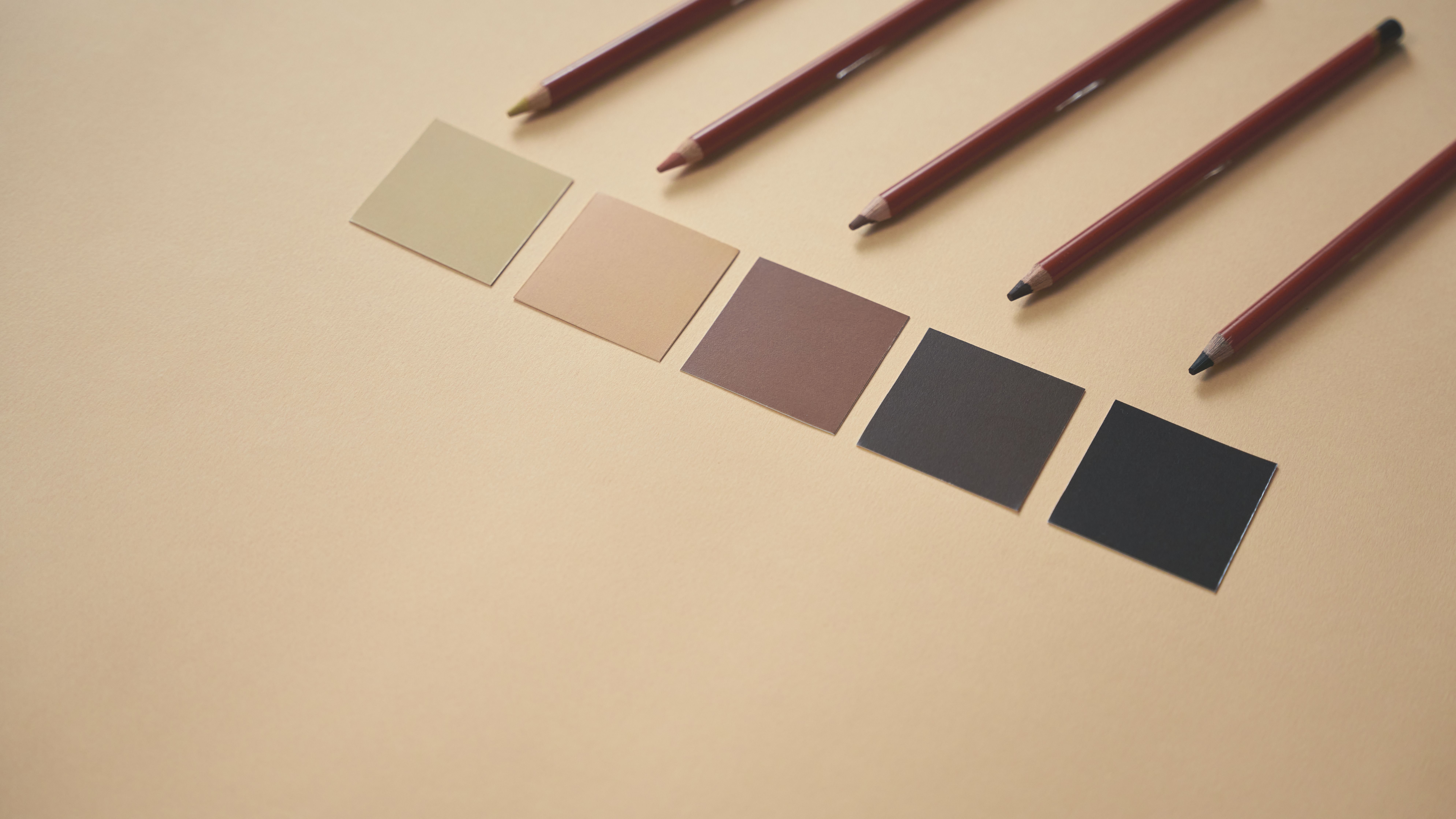
How to Create Lighter and Darker Shades of a Hex Color: A Complete Guide
Choosing the right colors is an important part of creating an attractive website, designing a logo, or building a consistent visual identity. However, finding the perfect base color is only the beginning. You may also need lighter shades for backgrounds, darker shades for buttons, or subtle variations for borders, hover effects, and text.
Fortunately, you do not need to guess these colors manually. Learning how to create lighter and darker shades of a hex color allows you to generate consistent color variations for almost any design project.
A hex color code such as #3498DB represents a specific color using six hexadecimal characters. By adjusting its red, green, and blue components or modifying its lightness in a suitable color model, you can create a range of related shades that complement your original color.
In this guide, you will learn how to lighten and darken hex colors, use an online color shade generator, understand the difference between tints and shades, and apply your results in CSS and real-world design projects.
Whether you are a web designer, developer, graphic designer, or beginner, these practical techniques will help you create better color combinations with less effort.
What Is a Hex Color Code?
A hexadecimal color code, commonly called a hex color, is a six-digit code used to represent colors in digital design. It typically begins with a hash symbol (#) followed by six characters containing numbers from 0 to 9 and letters from A to F.
Each pair of characters represents one of the three primary components of an RGB color:
- Red: The first two characters.
- Green: The middle two characters.
- Blue: The last two characters.
For example, the hex color #3498DB represents a shade of blue.
| Hex component | RGB value | Meaning |
|---|---|---|
34 | 52 | Red intensity |
98 | 152 | Green intensity |
DB | 219 | Blue intensity |
Each RGB component can range from 0 to 255. Increasing or decreasing these values changes the resulting color.
However, changing the RGB values independently can shift the hue or saturation. If you want to create visually consistent lighter and darker variations, you should use a method that suits your design requirements.
How to Create Lighter and Darker Shades of a Hex Color Online
The easiest method is to use an online hex color shade generator, such as a suitable color tool on SmartColorTools.com.
A shade generator can produce multiple variations of a base color, helping you compare lighter and darker options without manually calculating individual color values.
Step 1: Enter your base hex color
Start by selecting the original color you want to modify.
For example: #3498DB
You can obtain a hex code from your website, an image, a logo, or a color palette. If you already know the code, enter it directly into the color tool.
Make sure the code is valid. Most six-digit hex colors contain a hash symbol followed by six hexadecimal characters.
Step 2: Generate lighter shades
Lighter versions of a color are useful when you need subtle backgrounds, highlighted sections, or softer visual elements.
For example, lighter variations of #3498DB might include:
#5DADE2#85C1E9#AED6F1#D6EAF8
These examples illustrate a progressively lighter blue palette. Exact output depends on the color adjustment method and the amount of lightening applied.
Step 3: Generate darker shades
Darker colors are useful for buttons, headings, borders, icons, and interactive elements that need stronger visual emphasis.
For example, darker blue variations might include:
#2E86C1#2874A6#21618C#1B4F72
These colors retain a recognizable blue appearance while offering greater visual depth.
Step 4: Compare and select the best variations
Do not choose a shade simply because it looks attractive in isolation. Consider how it works alongside your existing background, text, buttons, and other interface elements.
Look for shades that:
- Match your original brand color.
- Provide sufficient contrast with surrounding elements.
- Remain visually consistent across your website.
- Work well on desktop and mobile screens.
- Support readable text and accessible interface controls.
Once you find suitable variations, copy their hex codes into your CSS, design software, or brand color documentation.
What Is the Difference Between a Tint, Shade, and Tone?
The terms tint, shade, and tone describe different ways to modify a color. Understanding the distinction helps you choose the right technique for your project.
1. Tint: A lighter version of a color
A tint is created by mixing a color with white. This increases its lightness and generally makes it appear softer.
For example, adding white to a medium blue produces pale blue variations suitable for backgrounds, cards, banners, and subtle highlights.
Common uses for tints include:
- Website section backgrounds.
- Hover states for light interface elements.
- Infographic backgrounds.
- Soft gradients.
- Decorative shapes and illustrations.
2. Shade: A darker version of a color
A shade is created by mixing a color with black. This reduces its lightness and produces a deeper version of the original color.
Darker shades can add contrast, visual hierarchy, and depth to a design.
They are often used for:
- Button hover states.
- Navigation bars.
- Headings and icons.
- Borders and separators.
- Dark-themed interface components.
3. Tone: A more muted version of a color
A tone is created by mixing a color with gray. Depending on the adjustment, the resulting color can appear less vivid or more subdued.
Tones are particularly useful for professional websites, muted palettes, illustrations, and interfaces that require less visual intensity.
Tint vs. shade vs. tone
| Color variation | How it is created | Typical appearance | Common use |
|---|---|---|---|
| Tint | Add white | Lighter and softer | Backgrounds |
| Shade | Add black | Darker and deeper | Buttons and emphasis |
| Tone | Add gray | More muted | Neutral designs |
In everyday web design, people often use the word "shade" to describe any lighter or darker color variation. Technically, however, a lighter tint and a darker shade are different types of color modification.
How to Create Lighter Hex Colors Using RGB Values
If you prefer to calculate colors yourself, you can create lighter variations by moving each RGB component toward 255.
The RGB color model represents colors using three values:
- Red: 0–255.
- Green: 0–255.
- Blue: 0–255.
White is represented by (255, 255, 255), so moving an RGB color toward these values produces a lighter result.
The formula for lightening a color
A simple interpolation formula is:
New value = Original value + (255 - Original value) × Amount
Here, Amount is a value between 0 and 1.
0means no change.0.25means move 25% toward white.0.50means move halfway toward white.1means the resulting color is white.
Suppose your original color is #3498DB, which corresponds to RGB (52, 152, 219).
To lighten it by 25%:
- Red: 52 + (255 − 52) × 0.25 = 102.75.
- Green: 152 + (255 − 152) × 0.25 = 177.75.
- Blue: 219 + (255 − 219) × 0.25 = 228.
Rounding to the nearest integer produces RGB (103, 178, 228), or approximately #67B2E4.
This is a practical way to create a lighter variation programmatically.
Keep in mind that RGB interpolation is a simple mathematical approach. It does not guarantee perfectly uniform perceptual lightness, and it may not preserve the original color's appearance as well as a perceptually oriented color model.
How to Create Darker Hex Colors Using RGB Values
To create darker colors, move each RGB component toward zero.
Black is represented by (0, 0, 0). Reducing the intensity of each channel produces a darker result.
The formula for darkening a color
A straightforward formula is:
New value = Original value × (1 - Amount)
The Amount represents how much darker you want the color to become.
0means no change.0.20means reduce each component by 20%.0.40means reduce each component by 40%.1produces black.
Using the original color #3498DB, its RGB values are (52, 152, 219).
To darken it by 25%:
- Red: 52 × 0.75 = 39.
- Green: 152 × 0.75 = 114.
- Blue: 219 × 0.75 = 164.25.
Rounding to the nearest integer produces RGB (39, 114, 164), or #2772A4.
This approach is useful when you need predictable color adjustments in a script or design system.
However, reducing every RGB channel proportionally does not always produce the most visually pleasing result. Some colors can lose vibrancy or appear to shift in hue as they become darker.
How to Create Better Color Variations Using HSL
For many design tasks, HSL is an easier color model to understand than RGB.
HSL stands for:
- Hue: The basic color family, such as red, blue, or green.
- Saturation: The intensity or vividness of the color.
- Lightness: How light or dark the color is.
Unlike RGB, HSL separates lightness from the other two components. This makes it convenient to create lighter and darker variations while keeping the hue and saturation approximately constant.
Lighten a color by adjusting HSL lightness
To create a lighter variation, increase the lightness value while keeping the hue and saturation unchanged.
For example, an HSL color with a lightness of 40% can be adjusted to 50%, 60%, or 70%.
As the lightness increases, the color moves toward white.
Darken a color by adjusting HSL lightness
To create darker variations, reduce the lightness value.
A color with 40% lightness could be adjusted to 30%, 20%, or 10%.
The resulting colors become progressively darker while retaining the same nominal hue and saturation.
When should you use HSL instead of RGB?
Use RGB interpolation when you want a simple calculation or need to blend directly toward white or black.
Use HSL when you want an intuitive way to control lightness and maintain the general identity of a color.
For even more consistent visual results, consider modern color spaces such as OKLCH. These are designed to make lightness adjustments more perceptually consistent, although gamut limitations can still affect the final color.
How to Create Lighter and Darker Hex Colors in CSS
You do not always need to generate every color variation manually. CSS provides several ways to adjust colors directly in your stylesheet.
Method 1: Use predefined hex color values
The simplest approach is to define a small palette containing your base color and its lighter and darker variations.
:root {
    --primary: #3498DB;
    --primary-light: #85C1E9;
    --primary-lighter: #D6EAF8;
    --primary-dark: #2874A6;
    --primary-darker: #1B4F72;
}

body {
    background-color: var(--primary-lighter);
    color: var(--primary-darker);
}

button {
    background-color: var(--primary);
    color: #FFFFFF;
}

button:hover {
    background-color: var(--primary-dark);
}
This method gives you direct control over every color and works well when you need a consistent palette across multiple pages.
Method 2: Use CSS HSL colors
CSS supports HSL notation, which allows you to adjust lightness directly.
:root {
    --primary: hsl(204, 70%, 53%);
    --primary-light: hsl(204, 70%, 75%);
    --primary-dark: hsl(204, 70%, 35%);
}

.card {
    background-color: var(--primary-light);
}

.button {
    background-color: var(--primary);
}

.button:hover {
    background-color: var(--primary-dark);
}
The hue and saturation remain constant in these examples, while lightness changes.
The resulting colors may differ from RGB-based calculations, so choose the method that best matches your intended appearance.
Method 3: Use relative color syntax
Modern CSS also supports relative color syntax, which can derive new colors from an existing color.
:root {
    --primary: #3498DB;
}

.button {
    background-color: var(--primary);
}

.button:hover {
    background-color: hsl(from var(--primary) h s calc(l - 15%));
}

.card {
    background-color: hsl(from var(--primary) h s calc(l + 30%));
}
Here, the button hover color is created by reducing the base color's HSL lightness by 15 percentage points. The card background increases it by 30 percentage points.
Relative color syntax is supported by modern browsers, but compatibility should be checked if your project needs to support older browsers. Also, ensure your calculations stay within the valid lightness range of 0% to 100%.
Practical Examples of Lighter and Darker Color Palettes
Creating a good color palette involves more than generating random variations. You should choose shades according to how they will be used.
Here are some practical examples for common web design situations.
Example 1: Blue palette for a business website
Blue is frequently used for professional websites because it can communicate reliability and clarity.
| Purpose | Example hex code |
|---|---|
| Light background | #D6EAF8 |
| Soft section background | #AED6F1 |
| Primary brand color | #3498DB |
| Button hover | #2874A6 |
| Dark emphasis | #1B4F72 |
Use the lighter colors for large surfaces and the darker colors for emphasis. Test text and button combinations rather than assuming every shade will be accessible.
Example 2: Green palette for an environmental website
Green is often associated with nature, sustainability, and growth.
| Purpose | Example hex code |
|---|---|
| Pale background | #D5F5E3 |
| Light green | #82E0AA |
| Primary green | #27AE60 |
| Dark green | #1E8449 |
| Deep green | #145A32 |
This palette offers multiple levels of visual emphasis while maintaining a consistent green theme.
Example 3: Red palette for alerts and notifications
Red can be useful for warnings, error messages, and important notifications.
| Purpose | Example hex code |
|---|---|
| Pale red background | #FADBD8 |
| Light red | #F1948A |
| Primary red | #E74C3C |
| Dark red | #C0392B |
| Deep red | #78281F |
For accessibility, do not rely on color alone to communicate errors. Combine red indicators with clear labels, icons, or descriptive text.
These palettes are illustrative starting points. Before using them in production, check their visual consistency and contrast against the actual backgrounds and text colors in your design.
Common Mistakes to Avoid When Creating Color Shades
Even a mathematically correct color variation may not work well in a real design. Avoid these common mistakes when building a palette.
1. Making every variation too similar
If the differences between shades are too subtle, users may struggle to distinguish buttons, borders, and backgrounds.
Create enough separation between variations to establish a clear visual hierarchy.
2. Darkening colors without checking their appearance
Reducing RGB values can make certain colors look muddy or less vibrant.
If a darker version does not look right, try adjusting HSL lightness or exploring an OKLCH-based color tool.
3. Using light colors for small text
Light shades can look attractive in large backgrounds but may become difficult to read when used for small text.
Check text contrast against the actual background. Under WCAG 2.2 guidance, normal text generally requires a contrast ratio of at least 4.5:1 for Level AA, while large text generally requires at least 3:1. Some exceptions apply.
4. Ignoring hover and focus states
Interactive elements need more than a default color.
Create consistent variations for hover, focus, active, and disabled states where appropriate. Make sure keyboard focus is clearly visible and that state changes are not communicated through color alone.
5. Using too many unrelated colors
A website with dozens of unrelated color variations can appear inconsistent.
Start with one primary color, generate a manageable range of lighter and darker options, and introduce additional accent colors only when they serve a clear purpose.
Frequently Asked Questions
How do I make a hex color lighter?
You can make a hex color lighter by moving its RGB components toward 255, mixing it with white, or increasing its lightness in a color model such as HSL. An online hex color shade generator is often the quickest option if you want to compare multiple variations.
How do I make a hex color darker?
Move the RGB components toward zero, mix the original color with black, or reduce its HSL lightness. For example, multiplying each RGB component by 0.8 reduces its intensity by 20%.
Is there a formula to lighten a hex color?
Yes. For a simple RGB-based approach, use:
New value = Original value + (255 - Original value) × Amount
Choose an amount between 0 and 1, calculate the result for each RGB component, round to the nearest integer, and convert the three resulting values back into a hex code.
What is the difference between a lighter color and a tint?
A tint is technically created by mixing a color with white. In general design discussions, "lighter color" is a broader term that can refer to any method of increasing perceived or calculated lightness.
Can I generate multiple shades from one hex code?
Yes. Start with one base color and apply several lightening and darkening levels. For example, you can create five lighter variations and five darker variations to establish a palette for backgrounds, borders, buttons, and text.
Can I create lighter and darker shades directly in CSS?
Yes. You can define predefined hex values, use HSL colors with different lightness values, or use relative color syntax to derive variations from an existing CSS color. Check browser compatibility when using newer syntax.
Which is better for creating color shades: RGB or HSL?
RGB is useful for simple calculations and blending a color toward white or black. HSL is often more intuitive because you can change lightness separately from hue and saturation. For perceptually consistent adjustments, a color space such as OKLCH may be a better choice.
How many shades should a website color palette have?
There is no universal number. A small website may need only a base color, a light background color, and a darker interactive color. A larger design system may benefit from a numbered scale containing several steps from very light to very dark.
Do lighter and darker shades automatically provide accessible contrast?
No. A lighter or darker shade does not guarantee sufficient contrast. Test the actual foreground and background combination with a contrast checker, especially for text, buttons, form fields, and other important interface elements.
How can I keep my color palette consistent across a website?
Define reusable CSS custom properties for your base colors and their variations. Use consistent naming conventions, document the purpose of each color, and test the palette across different components and screen sizes.
Conclusion
Learning how to create lighter and darker shades of a hex color makes it easier to build attractive, consistent, and practical color palettes for websites and digital designs.
You can generate variations quickly with an online color tool, calculate them using RGB formulas, or adjust lightness directly with HSL and modern CSS features. Each method has its advantages, so choose the one that fits your workflow and the level of control you need.
For most website projects, start with a primary brand color, create a small range of lighter and darker variations, and assign each shade a clear purpose. Use lighter colors for subtle backgrounds, darker colors for emphasis, and accessible contrast combinations for readable text and interactive elements.
Most importantly, evaluate your colors in context rather than relying on their hex values alone. A well-planned palette should look consistent, support usability, and reinforce your website's visual identity.
With a little experimentation and the right color tools, you can turn a single hex code into a flexible palette that works across your entire design.